How to find and tag orders that include a free gift
How to tell an order has a gift from the app
Open the order in Shopify Admin:
- Additional details shows Gift added by: AppHero Free Gift.
- The gift line item shows the property
_apphero_giftfollowed by an ID. - The discount line shows your offer's Discount name.
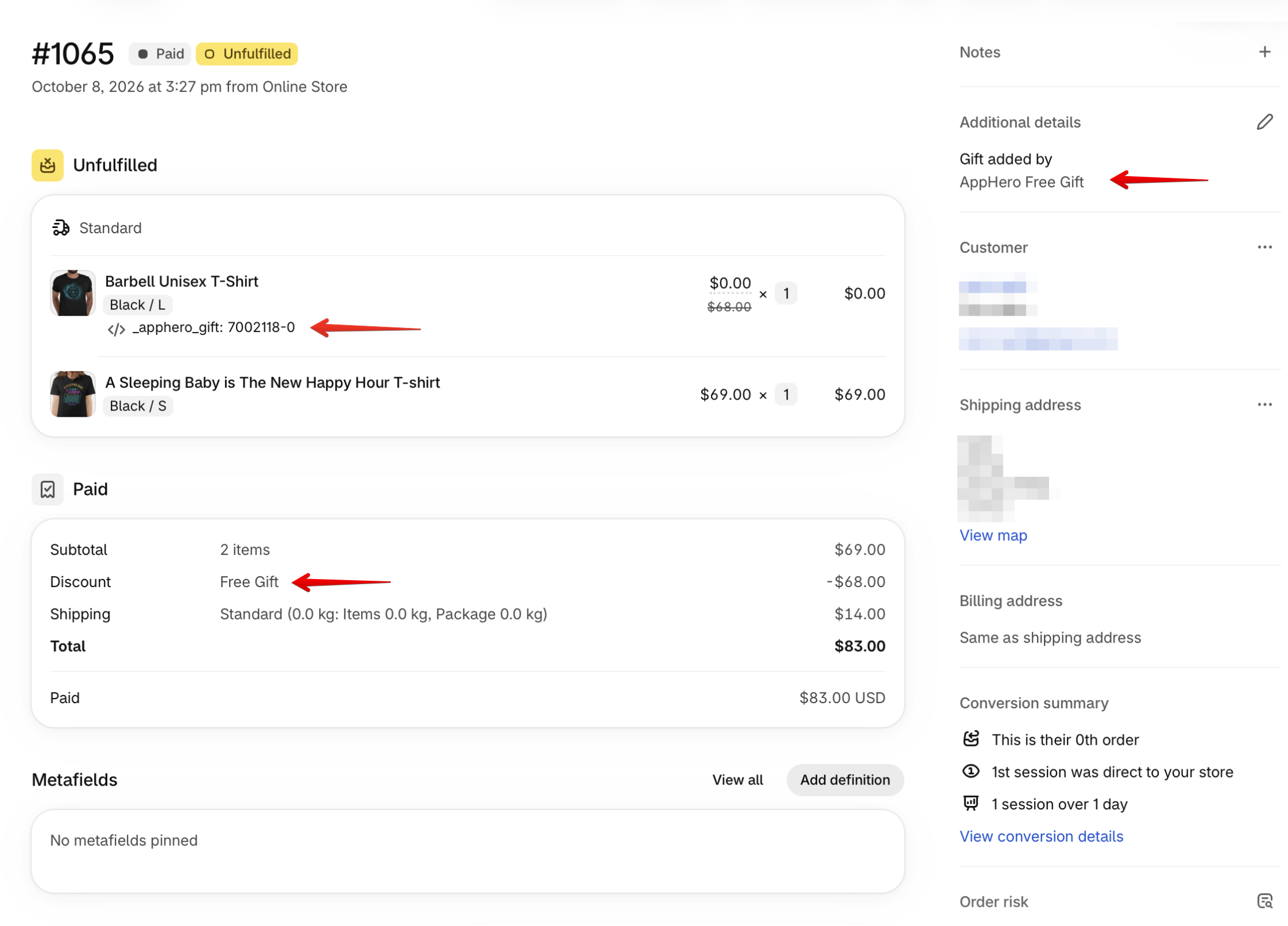
The gift line shows the gift's discounted price. It's 0 only when the offer's discount is 100%, so check for the _apphero_gift property rather than the price.
The note stays on the order even if the customer removed the gift before checking out, so the _apphero_gift property on the line item is the reliable sign.
These details are normally only visible in Shopify Admin. They're needed for the app to work and can't be removed. If your order emails, packing slips or theme show line-item properties or notes, you can hide them in those templates.
Tag gift orders automatically with Shopify Flow
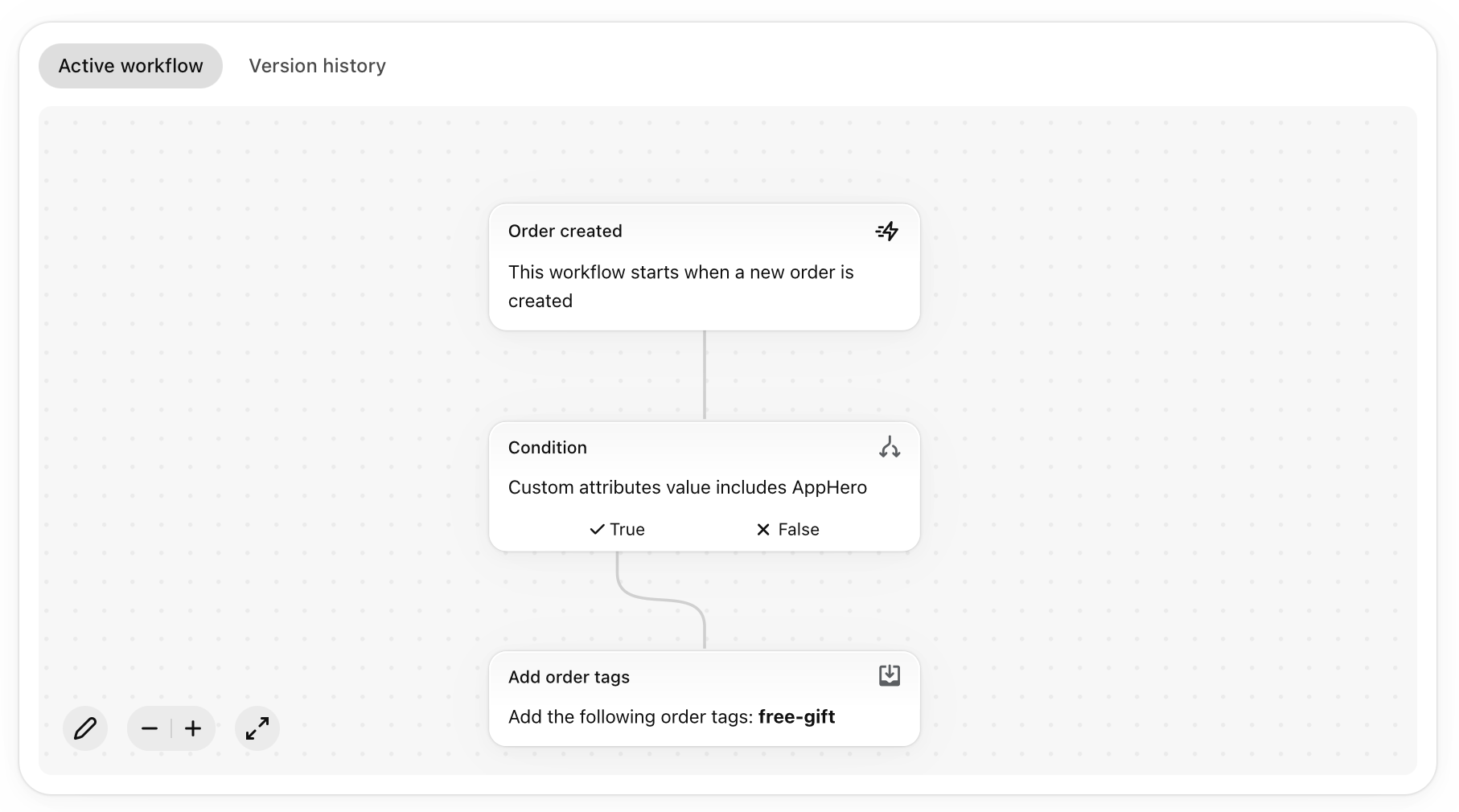
To filter or report on gift orders, add an order tag with the Shopify Flow app:
- Create a new workflow with the trigger Order created.
- Add a condition: Custom attributes value includes AppHero.
- If true, add the action Add order tags, for example
free-gift. - Turn on the workflow.
This tags every order where the app added a gift, including orders where the customer later removed it.
Stats in the app
The app's dashboard shows the number of gifts and the value of gift orders, this month and all time.