How to schedule a gift offer
Schedule an offer
Open the offer and go to Schedule, or click the calendar icon on the offer in the dashboard.
- Start: Immediately, or on a specific date and time.
- End: Never, or on a specific date and time. To remove an end date, set End to Never.
Show an offer on specific days or hours
Tick Show on specific days and times, then choose the days (every day or specific weekdays) and hours. You can use your store's time zone or each visitor's own time zone. This works well for weekend offers or a daily happy hour.
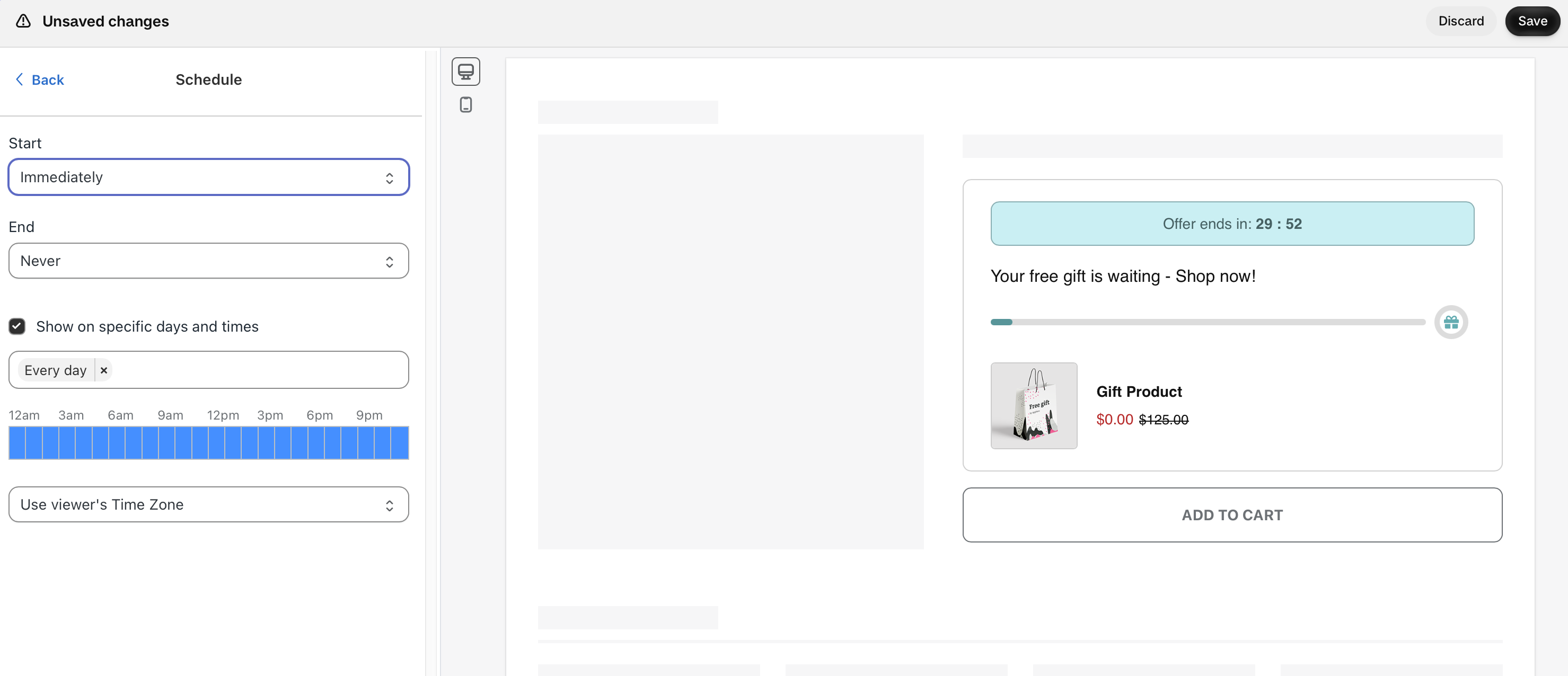
Which time zone is used?
Dates and times use your store's time zone, shown in GMT format next to the time field (for example GMT+03:00).
The offer started or ended one hour off
This is almost always caused by daylight saving time. Shopify doesn't pass daylight saving time to apps, so during daylight saving time the app's GMT offset can be one hour different from your local time.
To fix it, check the GMT offset shown in the Schedule tab and move the start or end time by one hour. If you use Show on specific days and times, also check whether it uses the visitor's or the store's time zone.
The countdown timer
The countdown timer in the promo banner (Content & Style > Promo Banner > Countdown Timer) is for display only and doesn't end the offer. To end the offer at a set time, use the Schedule end date. To hide the timer, click the eye icon next to Countdown timer and save the offer.