How to set up a Buy One Get One (BOGO) gift offer
Use the Buy X Get Y offer type to give a free (or discounted) product when a customer buys a specific product.
Set up the offer
- In the app, click Create offer and choose Buy X Get Y.
- Under Products eligible for the offer, choose the products or collections the customer must buy (X). Eligible products are chosen at product level, not by variant.
- Under Select gift options, choose the gift product (Y). You can add up to 10 gift options; the customer picks one.
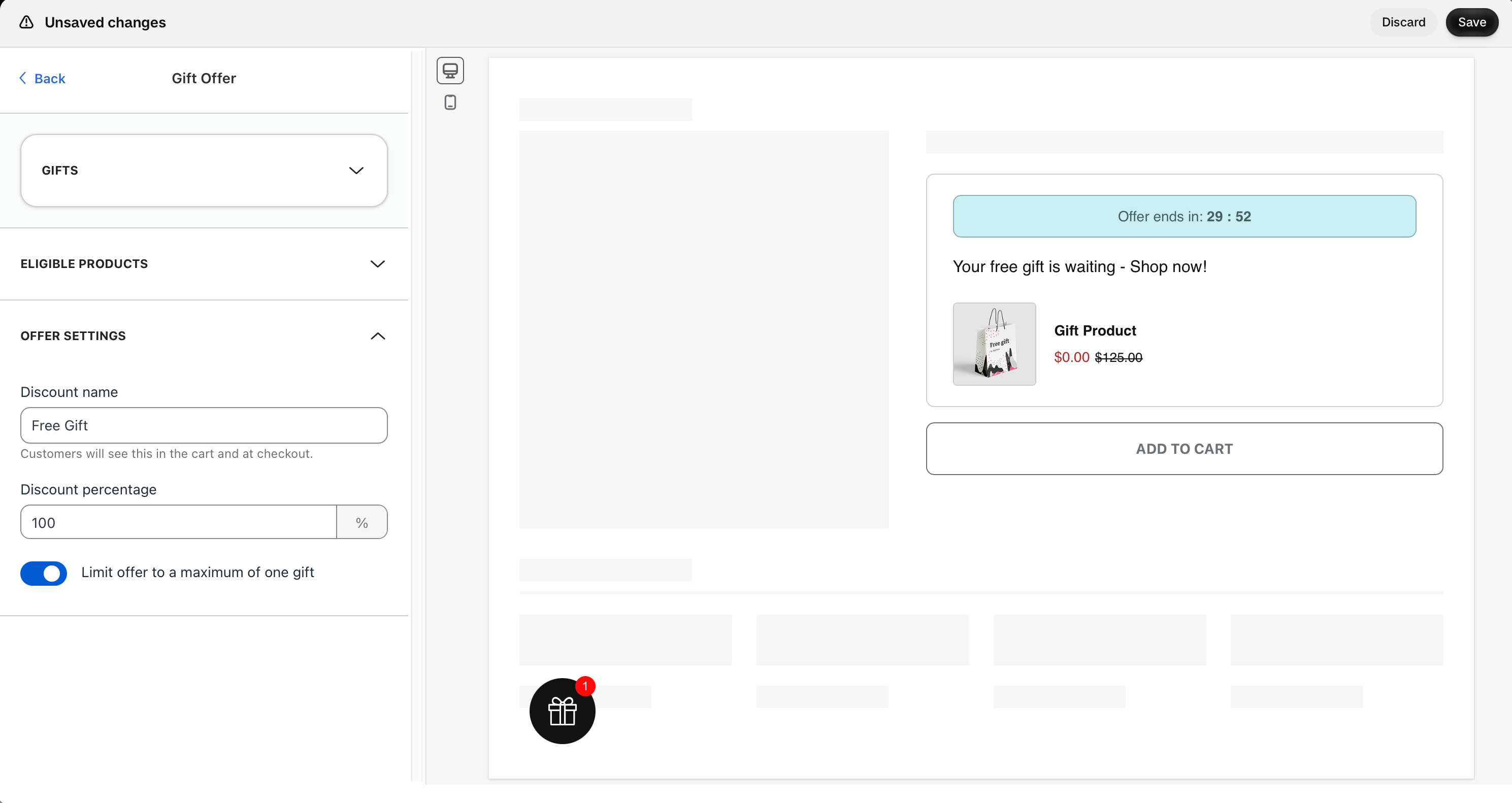
- In Offer Settings, set the Discount percentage (100% makes the gift free) and the Discount name customers see in the cart and at checkout.
- Click Save, then make sure the offer is active.
One gift per order, or one gift per item?
In Gift Offer > Offer Settings, use Limit offer to a maximum of one gift:
- On: the customer gets one gift per order, however many eligible products they buy.
- Off: the customer gets a gift every time the rule is met. For example, 3 of product A gives 3 of product B.
Spend or quantity based gifts
To give a gift for spending an amount, use Cart Value. To give a gift for buying a number of items (for example, "buy 3, get a gift"), use Cart Quantity.